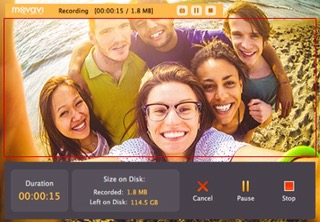
As screen resolutions have improved over the years, people have become more accustomed to watching higher quality videos. Nowadays if you’re looking to record videos, you almost certainly will want to do so in High Definition (HD) – possibly even up to 1080p Full HD if that is an option.
While you may not be certain how to record video from a PC screen in HD, rest assured Movavi Screen Capture Studio will help you out. Honestly speaking it simplifies the process of recording HD videos so that you only need to:
1. Set the capture frame to the region that you want to record or select your monitor’s name in the dropdown menu if you want to record full screen HD videos.
2. Open up the ‘Capture’ menu and select ‘Preferences’ then go to the ‘Video’ tab to find the ‘Maximum capture frame rate’ setting and set it to 60 to make sure to video is of the best possible quality.
3. Click ‘REC’ to start recording, and then ‘Stop’ when you’re done.
4. Click ‘Save’ to save the video by selecting a format.
Suffice to say if you capture your entire screen (and your screen is in HD resolution) then the video will be HD too. Add to that the fact that you will be able to record at 60 frames per second and your video should turn out looking really good.
Of course there’s more involved in making a video look attractive than just the recording quality alone, and Movavi Screen Capture Studio takes care of that as well. With the editing tools that it provides, you will be able to tweak and improve your video in quite a number of different ways.
To get started you may first want to use the features in Movavi Screen Capture Studio to remove any unnecessary footage that was accidentally recorded. If you want you can also merge several videos together, and rearrange the sequence of the scenes in your video. When you’re satisfied, you can then enhance the quality of your video and fix any issues in the recording such as blurry or shaky video footage.
After the HD video capture looks as you want it to, you can then give it a few finishing touches for style. With the special effects and filters, customizable text, and additional audio tracks that Movavi Screen Capture Studio will let you include – it shouldn’t be too hard to make sure that your video looks attractive and professional.
Simply put, Movavi Screen Capture Studio will let you record HD videos with just a few clicks while also giving you the tools to produce truly high quality videos. Assuming that’s your goal – give it a try and see what it can do.